TL;DR Need to manage projects in Notion? Here are the 10 essential templates you need to know:
- For Teams: Projects & Tasks by Notion (free, official template with robust features)
- For Freelancers: Freelance OS (comprehensive client and project tracker)
- For Agile: Verve Sprint Management (built for sprints and scrum)
- All-in-One: Mint OS (complete business management system)
- Client Work: Client Portal Template (professional client-facing dashboard)
- Simple Setup: Simple Project Management Template (minimal, fast to implement)
- Product Teams: Product OS (roadmaps, launches, and feature tracking)
- Personal Productivity: Second Brain 3.0 by Easlo (tasks + knowledge management)
- Remote Teams: Ultimate Productivity System (async collaboration focus)
- Best Free: Notion’s Kanban Board with AI (zero cost, AI-powered)
Bottom line: Choose based on your team size and complexity needs. Solo workers and freelancers should start with Freelance OS or Second Brain templates. Teams need Projects & Tasks or Mint OS. Agile teams want Verve. Everyone should customize their chosen template rather than template-hopping.
Why Notion Templates Matter for Project Management
Project management in Notion can be transformative—or overwhelming. The platform’s flexibility is both its greatest strength and biggest weakness. You can build anything, which means you can also waste weeks building the wrong thing.
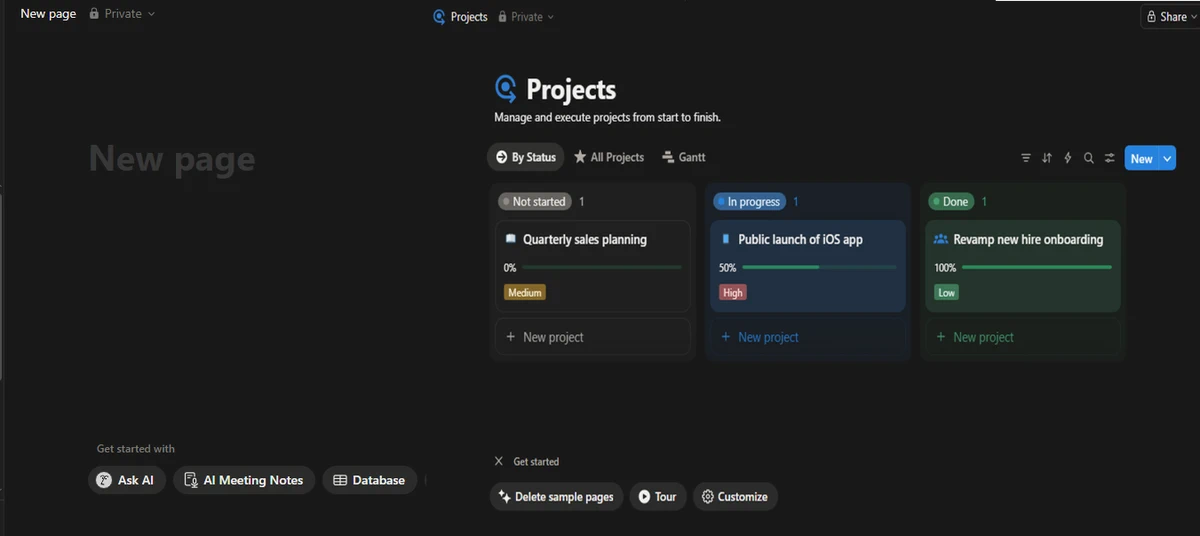
Templates solve this problem. They give you proven systems created by people who’ve already made the mistakes, refined the workflows, and stress-tested the databases. Instead of starting with a blank page, you start with a foundation that works.
The templates in this guide represent the best-in-class options for 2026. Each has been selected based on active maintenance, user reviews, feature completeness, and real-world utility across different use cases.
How to Choose the Right Notion Project Management Template
Key Features to Look For
Not all project management templates are created equal. The best ones share these characteristics:
- Database flexibility: Multiple views (table, board, calendar, timeline) so you can see your work different ways depending on context.
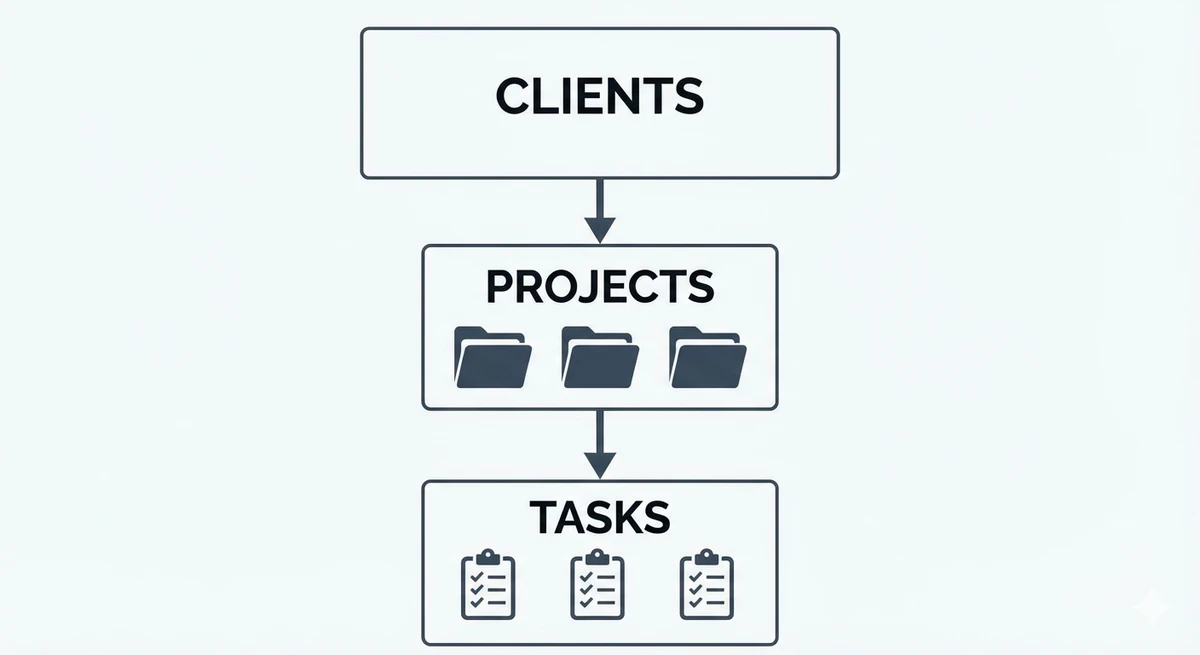
- Task relationships: The ability to link tasks to projects, clients, or goals using Notion’s relation properties. This prevents information silos.
- Status tracking: Clear workflows with customizable status options that match how your team actually works, not generic “To Do/Doing/Done” columns.
- Collaboration tools: Comments, mentions, and sharing capabilities built into the template structure.
- Scalability: Templates that work for 3 tasks or 300 without becoming cluttered or slow.
Matching Templates to Your Workflow
Your ideal template depends on your situation:
- Solo freelancers need client management, invoicing connections, and time tracking. Templates like Freelance OS or Client Portal are built specifically for this.
- Small teams (2-10 people) need clear task assignments, deadlines, and progress visibility. Projects & Tasks or Simple Project Management work well here.
- Larger teams or agencies require more sophisticated systems with multiple workspaces, client portals, and reporting. Mint OS or Commerce Business OS handle this complexity.
- Agile practitioners working in sprints need backlog management, sprint planning, and velocity tracking. Verve and similar sprint-focused templates are essential.
- Product teams building and launching features need roadmaps, launch checklists, and feature prioritization. Product OS is designed exactly for this.
The 10 Essential Notion Project Management Templates
1. Projects & Tasks by Notion - Best for Teams
What it is: The official project management template from Notion itself, providing a solid foundation with tasks linked to projects, team member assignments, and multiple database views.
Key features:
- Pre-built task and project databases with smart relations
- Multiple views including board, table, calendar, and timeline
- Templates for common project types
- Team member properties for assignment tracking
- Status automation and filtering
Best for: Teams of any size looking for a reliable, well-supported starting point that won’t disappear or become outdated. Pricing: Free with any Notion account. Why it’s essential: As the official template, it receives regular updates and represents Notion’s vision for project management. It’s also the most commonly used, making onboarding easier for new team members who may have seen it before.
2. Freelance OS - Best for Freelancers
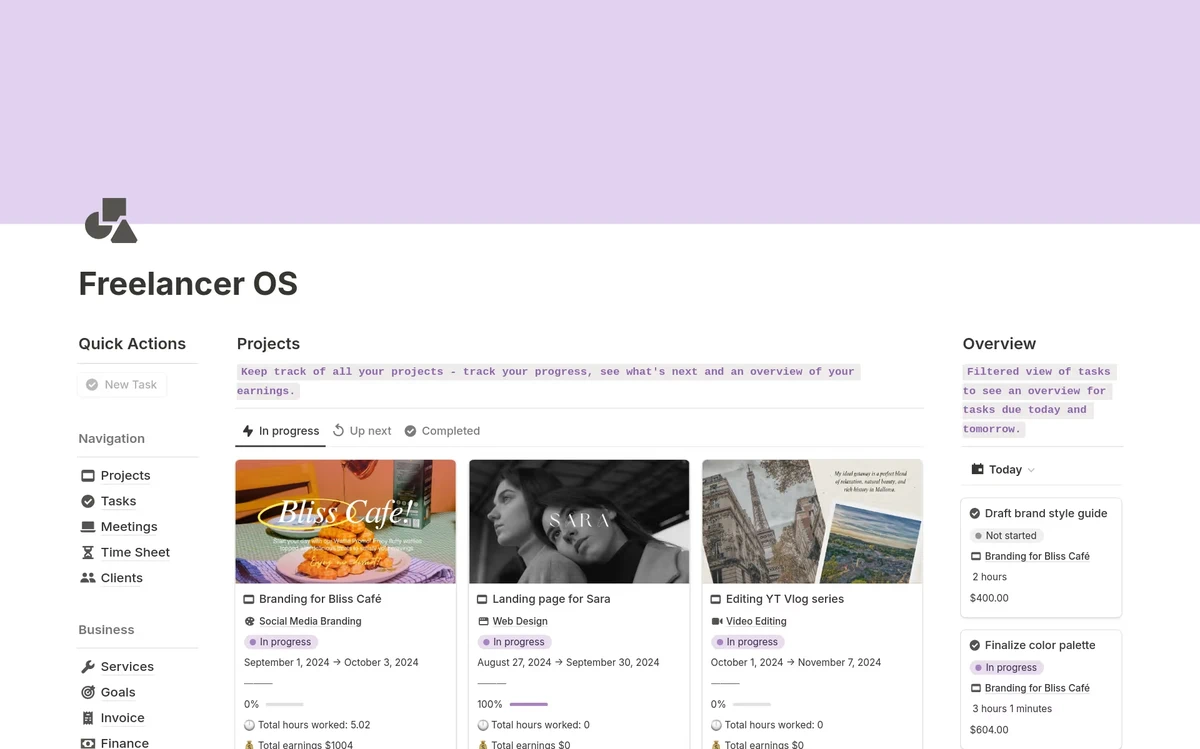
What it is: A comprehensive operating system for freelance professionals that combines project management with client relationships, finances, and business development.
Key features:
- Client database with contact info, project history, and communication logs
- Project tracker with profitability calculations
- Invoice and payment tracking
- Proposal templates and pitch management
- Time tracking integration-ready structure
Best for: Solo freelancers, consultants, and independent contractors managing multiple clients simultaneously. Pricing: Typically $29-49 one-time purchase from template marketplaces. Why it’s essential: Most project management templates assume you’re part of a company. Freelance OS understands that you ARE the company, addressing the unique needs of independent workers who wear every hat.
3. Verve - Agile Project & Sprint Management Board - Best for Agile/Sprint Management
What it is: A dedicated agile project management system with sprint planning, backlog grooming, and velocity tracking built directly into the template.
Key features:
- Sprint planning boards with drag-and-drop prioritization
- Backlog management with story point estimates
- Velocity tracking across sprints
- Retrospective templates
- Epic and user story hierarchies
Best for: Development teams, product teams, and any group practicing scrum or agile methodologies. Pricing: Around $39-59 depending on the seller. Why it’s essential: Generic project templates don’t understand agile workflows. Verve speaks the language of sprints, standups, and iterations, making it indispensable for teams who work this way.
4. Mint OS - Best All-in-One Solution
What it is: A complete business operating system that combines project management with goal tracking, habit building, notes, resources, and financial oversight.
Key features:
- Comprehensive project and task management system
- Goal-setting framework with progress tracking
- Knowledge management and note-taking system
- Financial dashboard for budgets and expenses
- Habit tracker and personal development tools
Best for: Entrepreneurs, small business owners, and ambitious individuals who want one system to run their entire professional life. Pricing: $49-79 one-time purchase. Why it’s essential: If you’re tired of jumping between different tools and templates, Mint OS consolidates everything. The integration between projects, goals, and knowledge management creates powerful workflows that specialized templates can’t match.
5. Client Portal Template - Best for Client Management
What it is: A professional-facing dashboard that clients can access to see project progress, review deliverables, provide feedback, and communicate with you—all within Notion.
Key features:
- Branded client-facing pages with your logo and colors
- Project timeline and milestone visibility for clients
- File sharing and deliverable review system
- Feedback and approval workflows
- Meeting notes and communication hub
Best for: Agencies, consultants, and service providers who want to professionalize client communication and reduce email overload. Pricing: $19-39 typically. Why it’s essential: Client communication often happens across email, Slack, text messages, and meetings. A centralized portal reduces confusion, sets professional boundaries, and makes you look more organized than you might actually be.
6. Simple Project Management Template - Best Simple/Minimalist Option
What it is: A no-frills, fast-to-implement template with just the essentials: tasks, projects, deadlines, and status tracking.
Key features:
- Clean task database with minimal properties
- Basic project grouping
- Priority and status filters
- Due date tracking
- Straightforward board and list views
Best for: People overwhelmed by complex systems, small teams with straightforward projects, or anyone who values speed of implementation over features. Pricing: Free or $5-15 for premium versions. Why it’s essential: Sometimes you don’t need a spaceship when a bicycle will do. This template proves that effective project management doesn’t require complexity. It’s also the fastest to set up and learn.
7. Product OS - Best for Product Teams
What it is: A specialized template for product managers and product teams, covering roadmaps, feature requests, launch planning, and user feedback.
Key features:
- Product roadmap with timeline and priority views
- Feature request database with voting and impact scores
- Launch checklist templates
- User feedback collection and analysis
- Integration-ready for product analytics tools
Best for: Product managers, product teams, and startups building digital products. Pricing: $45-69 depending on version. Why it’s essential: Product management has unique needs that generic templates ignore. Product OS understands the product development lifecycle from ideation through launch and iteration.
8. Second Brain 3.0 by Easlo - Best for Personal Productivity
What it is: A comprehensive personal knowledge and task management system based on the “Second Brain” methodology of capturing, organizing, and retrieving information.
Key features:
- Task management with GTD (Getting Things Done) principles
- Note-taking system with progressive summarization
- Project organization linked to knowledge base
- Resource library and learning tracker
- Daily, weekly, and monthly review templates
Best for: Knowledge workers, students, researchers, and anyone who needs to manage both tasks and information. Pricing: $39-49 typically. Why it’s essential: Most project templates focus on execution but ignore the knowledge and ideas that fuel projects. Second Brain connects what you know with what you do, making it essential for creative and intellectual work.
9. Ultimate Notion Productivity System - Best for Remote Teams
What it is: A team-oriented workspace designed specifically for distributed and asynchronous work, with emphasis on documentation, async communication, and transparency.
Key features:
- Team dashboard with everyone’s current priorities
- Async standup and status update templates
- Documentation system for processes and decisions
- Meeting notes database linked to projects
- Time zone awareness and flexible scheduling tools
Best for: Remote teams, distributed companies, and any group that can’t rely on office proximity. Pricing: $35-55 for team licenses. Why it’s essential: Remote work requires different systems than office work. This template embraces asynchronous communication and documentation-first culture, reducing meeting overload while keeping everyone aligned.
10. Kanban Board with Notion AI - Best Free Option
What it is: Notion’s official Kanban template enhanced with AI capabilities for task generation, summarization, and automation suggestions.
Key features:
- Classic Kanban workflow (To Do, In Progress, Done)
- AI-powered task breakdown and subtask generation
- Automated status updates and reminders
- Customizable columns and swim lanes
- Completely free to use and duplicate
Best for: Anyone new to Notion, teams on a budget, or people who want to test Notion’s project management capabilities before investing in premium templates. Pricing: Free with Notion AI features available on paid plans. Why it’s essential: You can’t beat free, especially when it’s backed by Notion’s official support and AI enhancements. This is the perfect starting point before deciding if you need something more sophisticated.
Quick Comparison: Which Template is Right for You?
| Template | Best For | Complexity | Price | Standout Feature |
|---|---|---|---|---|
| Projects & Tasks | Teams | Medium | Free | Official Notion support |
| Freelance OS | Freelancers | Medium | $29-49 | Client & financial integration |
| Verve | Agile teams | High | $39-59 | Sprint planning & velocity |
| Mint OS | All-in-one users | High | $49-79 | Complete life OS |
| Client Portal | Client-facing work | Medium | $19-39 | Professional client access |
| Simple PM | Minimalists | Low | Free-$15 | Speed & simplicity |
| Product OS | Product teams | High | $45-69 | Roadmap & launch tools |
| Second Brain 3.0 | Knowledge workers | Medium | $39-49 | Knowledge + tasks |
| Ultimate Productivity | Remote teams | Medium | $35-55 | Async communication |
| Kanban + AI | Beginners | Low | Free | AI assistance |
How to Customize Your Notion Project Management Template
Essential Customizations for Every Team
Even the best template needs personalization. Here’s where to start:
- Add custom properties: Every team has unique needs. Add properties like “Client Priority,” “Revenue Impact,” or “Department” to match your workflow.
- Create views that match your workflow: The default views are starting points. Create a “My Tasks” view filtered to your name, a “This Week” view filtered by due dates, or a “High Priority” view sorted by urgency.
- Set up automations and relations: Link your tasks to projects, projects to clients, and clients to revenue goals. These relationships unlock powerful rollup calculations like “total time spent per client” or “completion rate by project type.”
- Adjust statuses to match reality: If your team doesn’t use “In Review,” remove it. If you need “Blocked” or “Waiting on Client,” add them. Your statuses should reflect actual workflow states.
Advanced Tips for Power Users
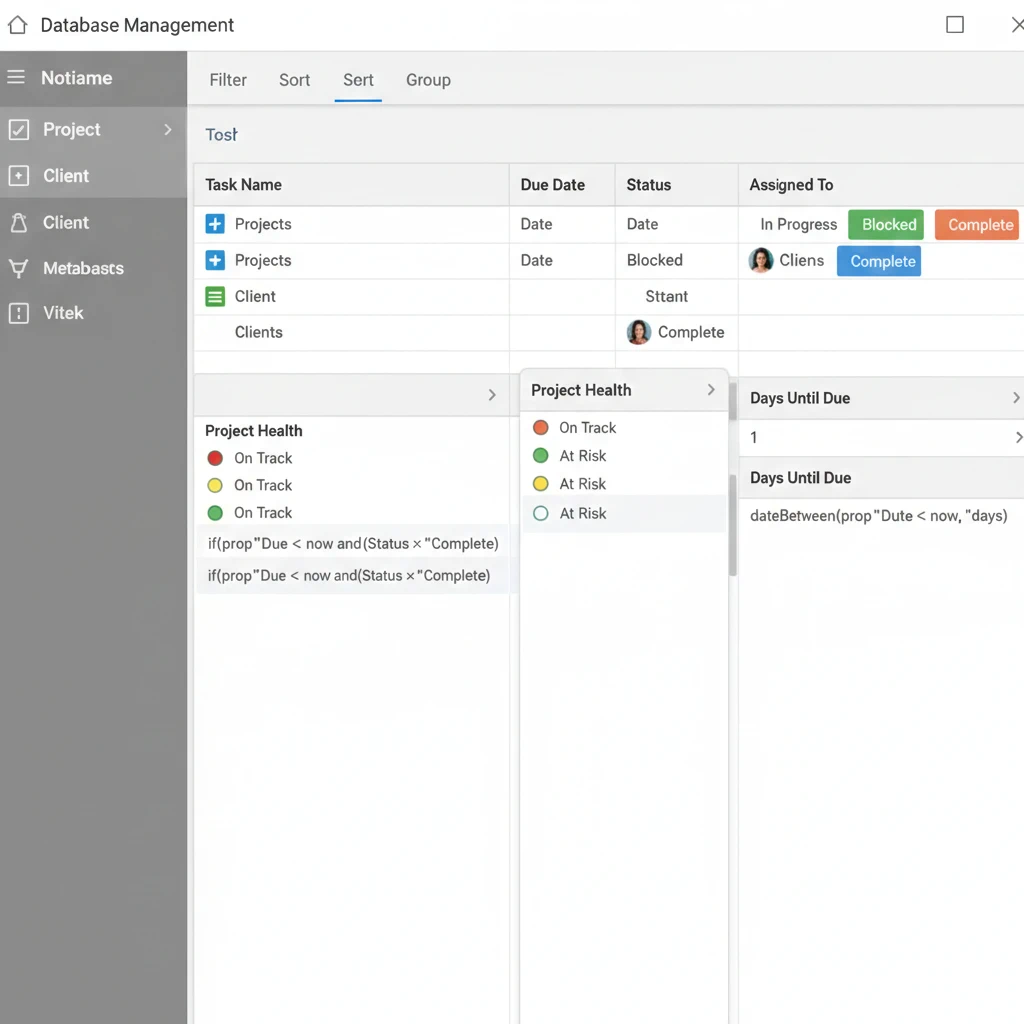
- Use formulas for automation: Create formulas that automatically calculate due dates, flag overdue tasks, or compute project health scores based on completion percentage and deadline proximity.
- Master database relations: Link everything. Tasks to projects. Projects to clients. Clients to revenue goals. These connections transform isolated databases into an intelligent system.
- Integrate with other tools: Use Notion’s API or tools like Zapier to connect your template with Slack, email, time tracking, or analytics platforms.
Common Mistakes to Avoid When Using Notion Templates
- Over-complicating your setup: The most common mistake is adding every property, view, and database you might someday need. Start minimal. Add complexity only when you feel the pain of not having it.
- Not customizing for your specific needs: Templates are starting points, not finished products. If you’re using someone else’s status labels, property names, and workflows without modification, you’re doing it wrong.
- Failing to train team members: A template is useless if half your team doesn’t understand it. Invest time in onboarding, create a guide, and answer questions patiently.
- Template hopping: Switching templates every month prevents you from developing muscle memory and workflows. Commit to one template for at least 90 days before switching.
- Not maintaining and updating regularly: Templates become cluttered with completed tasks, outdated projects, and irrelevant information. Schedule monthly cleanups to archive old data and keep your system fast.
Frequently Asked Questions
Is Notion good for project management?
Yes, Notion excels at project management for small to medium teams and individuals. Its flexibility allows you to create exactly the system you need, and databases enable powerful relationships between tasks, projects, and resources. However, very large teams (50+ people) or enterprise organizations might find dedicated tools like Asana, Monday.com, or Jira more suitable for complex project hierarchies and advanced reporting.
Are Notion project management templates free?
Many are free, including all official Notion templates like Projects & Tasks and the Kanban Board. However, premium templates from creators typically range from $19-79 for one-time purchases. These paid templates often include more sophisticated setups, better documentation, and ongoing support from creators.
Can I use Notion templates for team collaboration?
Absolutely. Notion’s collaboration features—real-time editing, comments, mentions, and permissions—make it excellent for team work. Most project management templates are specifically designed for team use, with properties for task assignment, team dashboards, and shared calendars.
How do I install a Notion template?
For official Notion templates, click “Templates” in your sidebar and browse the gallery. For purchased templates, you’ll receive a duplicate link from the seller. Click it while logged into Notion, and the template copies to your workspace. You can then customize it freely without affecting the original.
Can I modify Notion templates after purchasing?
Yes, completely. Once you duplicate a template to your workspace, it’s yours to modify however you want. Add databases, remove sections, change properties, adjust views—templates are starting points that you should customize to fit your exact needs.
What’s the difference between Notion and traditional PM tools like Asana or Monday?
Notion is a flexible knowledge workspace that can function as a project management tool, while Asana and Monday are purpose-built for project management. Notion offers more customization and combines project management with notes, wikis, and databases. Traditional PM tools offer more pre-built features like Gantt charts, workload management, and advanced reporting. Choose Notion if you want flexibility and one tool for multiple purposes; choose dedicated PM tools if you need specialized project features out of the box.
Do I need Notion’s paid plan to use project management templates?
Not necessarily. The free personal plan supports most templates with unlimited pages and blocks. However, you’ll need a paid plan ($10+ per month) for features like unlimited file uploads, version history beyond 7 days, and collaboration with more than 10 guests. Teams should budget for paid plans to unlock full collaboration capabilities.
Next Steps: Getting Started with Notion Project Management
- Choose your first template based on your primary use case from this list. Don’t overthink it—you can always switch later, and many concepts transfer between templates.
- Set aside 2-3 hours for initial setup. Duplicate the template, customize the basics (team members, project types, status options), and add your current projects and tasks.
- Onboard your team gradually. If working with others, start with a pilot project in the new system rather than migrating everything at once. This reduces resistance and lets you work out issues before full commitment.
- Commit to 30 days of consistent use before judging the template. Every system feels awkward at first. Give yourself time to build habits and muscle memory.
- Join the Notion community. Templates improve with community feedback. Join Notion’s Reddit, Discord, or Facebook groups to learn tips, share workflows, and get help when stuck.
The right template transforms Notion from an empty canvas into a productivity powerhouse. Choose one that matches your current needs, customize it thoughtfully, and give it time to become second nature. Your future organized self will thank you.